Update Your Email ID on MP Treasury Portal for Salary Notice
Update Your Email ID on MP Treasury Portal is an important step for employees who want to receive timely salary-related notifications, such as monthly payslips, GPF updates, and important financial alerts. An accurate and active email address ensures that employees stay informed about every update connected to their payroll and treasury records.
Many users overlook this simple yet crucial step, which can lead to missed notifications or delayed access to essential salary information. This guide provides a clear and reliable process to help you update your email ID on the MP Treasury Portal efficiently and without errors.
What is IFMS MP Treasury and Why Is Updating Your Email Important?
The MP Treasury portal, managed through the Integrated Financial Management System (IFMS), allows government employees in Madhya Pradesh to access their payslips, GPF statements, and other crucial financial information. One key feature is the ability to receive salary-related notifications, which are often sent via email.
Ensuring that your email ID is correctly updated is important because it ensures you don’t miss out on important notifications related to your salary, payments, and GPF details. Without an updated email, you might miss critical alerts that could affect your access to services and benefits.
How to Update Your Email ID on MP Treasury Portal
Here’s a simple step-by-step guide to help you update your email ID on the MP Treasury portal:
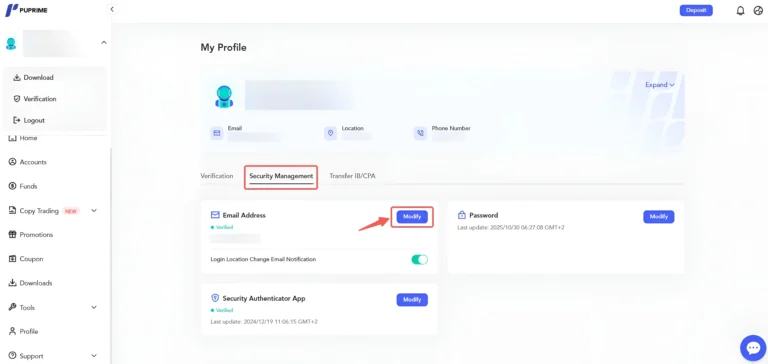
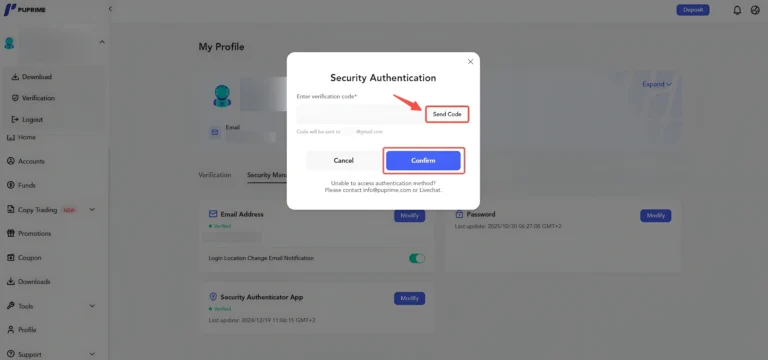
- Visit the portal and enter your User ID and password to access your account.
- Once logged in, look for the section labeled Employee Self Service (ESS) or something similar. This section allows you to update personal details like your email ID, mobile number, and other contact information.
- Within the ESS or Profile section, find the option to update your contact details. There should be a field for email ID where you can enter your new, active email address.
- After entering your new email ID, make sure to save the changes. Some systems may send a verification email to the new address or an OTP to confirm the update.
- If you cannot find the option to update your email directly, you may need to contact your Drawing and Disbursing Officer (DDO) or the support team. They can assist with making the update in the system.
What to Do if You Can’t Update Your Email on Your Own?
Sometimes, the portal may not allow self-service updates to your email address. In such cases:
Tips to Ensure a Smooth Email Update Process
Before You Update: Keep These Details Ready
Preparing the correct information can prevent verification errors and unnecessary delays.
Updated Email but No Salary Notice? Try These Fixes
If salary emails are still missing, first check the Spam, Promotions, and Junk folders. Confirm that the new email is displayed correctly in your IFMS profile and that verification is complete. Add the official sender address to your safe-sender list. If the issue continues, contact your DDO because the payroll record may still contain your previous email ID.
How Long Does the Email Change Take to Reflect?
A self-service email update may appear immediately, but changes requiring DDO or HR approval can take longer. Log out and sign in again after submitting the update. Check your profile and inbox for confirmation. If the old email remains visible after a reasonable processing period, share your request reference with the concerned office for follow-up.
Protect Your Account After Changing the Email
Use a personal email account that only you can access and create a strong, unique password. Never share your IFMS password, email verification link, or OTP with anyone. Avoid updating account information on public Wi-Fi or shared computers. After completing the process, sign out properly and keep the confirmation message for your records.
Common Email Update Problems and Their Solutions
| Problem | Practical Solution |
|---|---|
| Update Email option is missing | Contact your DDO or HR office because self-service editing may not be enabled for your account. |
| OTP is not received | Check your registered mobile number, network signal, and blocked messages, then request a new OTP after a few minutes. |
| New email is not accepted | Recheck spelling, remove unnecessary spaces, and enter a valid personal email address. |
| Verification email is missing | Check the Spam, Junk, and Promotions folders and request another verification email if available. |
| Old email still appears | Log out, clear the browser cache, and sign in again. Contact your DDO if the change still does not appear. |
| Salary notices are not arriving | Confirm that the email is verified and correctly linked to your employee record. Also check whether the relevant notification service is enabled. |
FAQs
Final Thoughts
Updating your email ID on the MP Treasury portal is an important step to ensure you don’t miss out on crucial salary notifications. If the system allows, you can easily update it yourself through the Profile or ESS section.
If not, reach out to your DDO or HR department for assistance. With the right contact details in place, you’ll stay informed about your payslips, salary updates, and other important notifications without any issues.