MP Treasury Salary Credit Verification for New Bank Account
MP Treasury Salary Credit Verification is a crucial step when switching to a new bank account, ensuring that your salary payments from the Madhya Pradesh (MP) government are credited to the correct account. Managing finances becomes easier when you’re confident that your hard-earned money reaches the right place without delays or errors. The MP Treasury Integrated Financial Management System (IFMS) offers a secure platform for government employees to check and verify their salary deposits.
In this article, we’ll guide you through the process of verifying salary credits in your new bank account on the MP Treasury IFMS portal, ensuring everything runs smoothly whether you’re a first-time user or switching accounts.
What Is MP Treasury IFMS?
The Integrated Financial Management System (IFMS) is a digital platform used by the Madhya Pradesh government to manage financial processes, including employee salaries. Through the portal, government employees can:
Why You Need to Verify Salary Credit
When you switch to a new bank account, it’s important to confirm that future salaries are being credited to that account.
If you don’t check it:
Verifying ensures your hard‑earned money reaches the right place, on time.
What You’ll Need Before You Start
Make sure you have:
If you don’t have your login details, contact your D.D.O (Drawing & Disbursing Officer) — they issue the initial credentials.
How to Verify Your Salary Credit
This step-by-step guide explains MP Treasury Salary Credit Verification, helping you accurately check your salary credit status using official records and authorized online portals.
Visit IFMS MP Treasury Official Site
Log In to Your IFMS Account
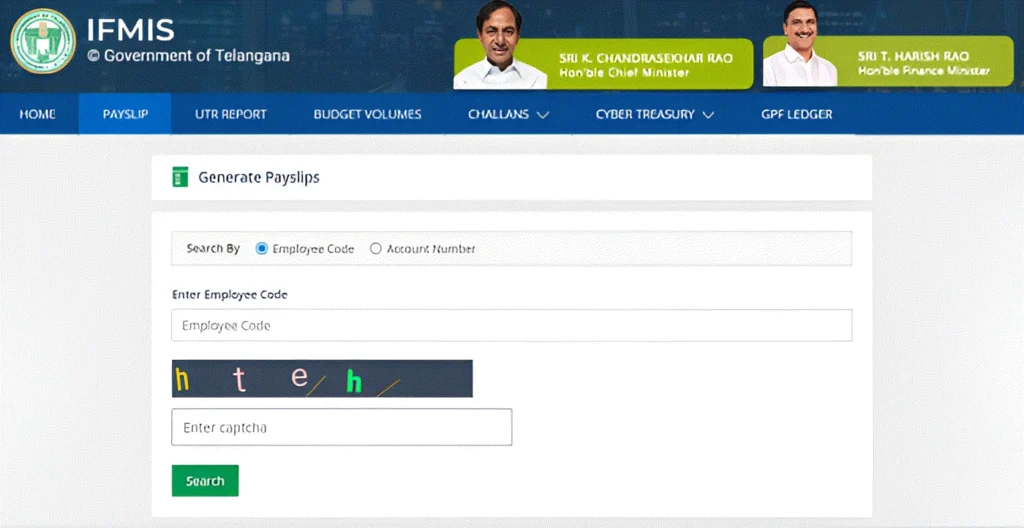
If you forgot your password, use the “Forgot Password” link and reset it via OTP sent to your registered mobile number.
Go to the Salary Section
Once logged in:
This section shows your monthly salary history and status of deposits.
Verify Your Bank Account Details
Before checking salary credit, make sure your current bank account is updated:
If these are incorrect or old, the salary might still go to your old account.
Tip: If you need to update your bank details, contact your HR or DDO — IFMS typically doesn’t allow employees to change bank account directly online. Always file this update through proper approval channels.
Check Salary Credit Status
Now let’s verify salary credit:
You should now see:
This page shows whether your salary was successfully deposited into your new bank account.
How to Read the Salary Report
When your salary status shows “Credited”:
If it shows “Pending/Not Credited”, don’t panic — salary might still be processing.
Quick Tips to Avoid Problems
Always update bank details before salary processing time.
If you update after salary bills are processed, the money might go to the old account.
Check salary slips every month to confirm deposits.
Keep your contact info up to date on IFMS so you get OTPs and alerts without delay.
If salary isn’t credited even after verification, talk to your DDO or Accounts Office immediately.
Common Issues & How to Fix Them
This section highlights common problems users face while checking salary credit status and explains why these issues occur.
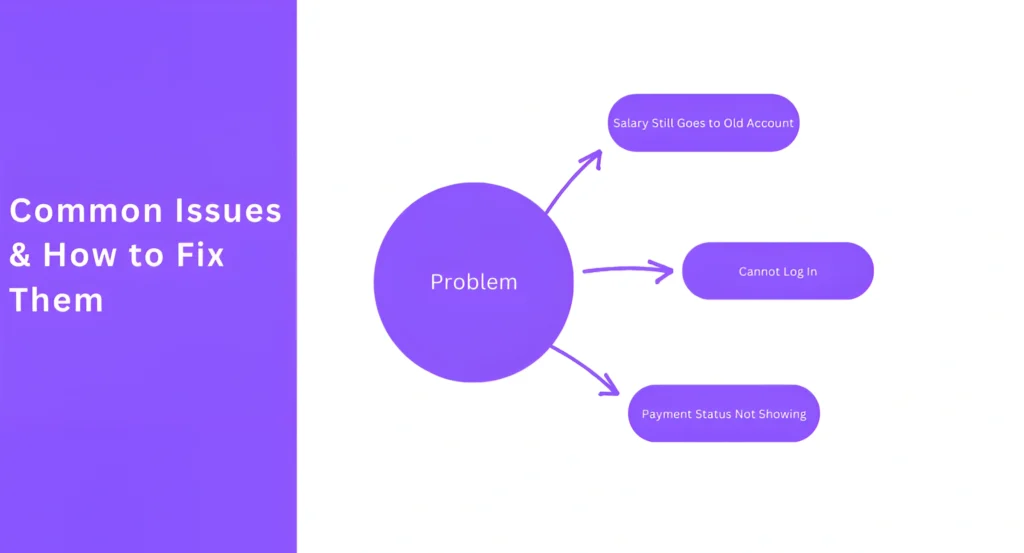
Problem: Salary Still Goes to Old Account
Solution:
Problem: Cannot Log In
Solution:
Problem: Payment Status Not Showing
Solution:
Why This Matters
Verifying salary credit is not just a formal step — it helps you:
This process is especially important after switching your bank account so that every rupee lands in the right place.
Wrapping It Up
Verifying your salary credit in a new bank account on MP Treasury IFMS is simply a matter of:
With the right steps and patience, you can make sure your monthly salary is accurate and successfully credited. If you ever get stuck, your HR department or DDO is your first point of help.
Important Checks Before Salary Credit Verification
Before verifying salary credit in a new bank account, employees should confirm a few important points. These checks help avoid salary delays, wrong account credit, and unnecessary confusion.
1. Check Bank Account Change Approval Status
2. Verify the First Salary After Bank Change
3. Keep Important Documents Ready
These documents help speed up the correction process if any salary credit issue occurs.
4. Know Whom to Contact for Help
| Issue | Contact Point |
|---|---|
| Bank details not updated | DDO or HR office |
| Salary credited to old account | DDO/accounts section |
| IFMS status not showing | Treasury or accounts office |
| Amount credited but not received in bank | Bank branch |
| Wrong account number or IFSC | DDO/HR with correct documents |
MP Treasury Salary Credit Problems and Solutions
| Problem | Why It Happens | Smart Solution |
|---|---|---|
| Salary went to the old bank account | New bank details were not updated before salary processing | Confirm with the DDO/HR that the bank update has been approved in IFMS. |
| IFMS shows salary as credited, but money has not reached the bank account | Bank processing delay or transaction settlement issue | Wait 24–48 hours, then contact the bank branch and accounts office. |
| New bank account details are showing incorrectly | Account number, IFSC, or branch details were updated incorrectly | Submit a correction request to DDO/HR with the correct documents. |
| Payment status is not visible on the portal | Salary bill has not been processed or the portal update is delayed | Select the correct month/year and check again after 1–2 days. |
| Salary is showing as pending | Treasury approval, bank transfer, or department processing is still pending | Confirm the salary bill status with the accounts section. |
| OTP is not being received | Registered mobile number is inactive or outdated | Update your registered mobile number through the department. |
| Payslip amount and bank credit amount do not match | Deductions, arrears, tax, or allowance adjustment may have been applied | Compare the payslip components and contact the accounts office for clarification if needed. |
| Bank details section is not opening after login | Browser, cache, or portal loading issue | Clear the browser cache, use an updated browser, or try again during off-peak hours. |
FAQs
Final Thoughts
Always verify your salary credit on time, especially after switching your bank account.By following these steps carefully, you’ll ensure smooth salary transfers and avoid any delays. Stay proactive, keep your info updated, and reach out to your DDO if something seems off.