Recover MP Treasury Access Without OTP: Complete 2026 Guide!
Locked out of your MP Treasury account because you’re not receiving the OTP? You’re not alone. Many users face OTP issues due to changed mobile numbers, network delays, inactive SIM cards, or outdated profile details. The good news is that you can still recover MP Treasury access in 2026 through official verification and account recovery methods, without risking your account security or violating portal rules. In this guide, we’ll walk you through the safest ways to regain access, update your registered mobile details, contact the right support channels, and avoid common mistakes that can delay your login recovery.
Quick Answer
You cannot directly recover MP Treasury access without OTP when the portal requires verification on the registered mobile number. If you no longer control that number, contact your DDO, office establishment clerk, departmental IFMS nodal officer, or authorised treasury support desk.
Ask them to verify your employee record and update the registered mobile number. Once the change is approved, request a fresh OTP and reset your password through the official MP Treasury portal.
Never pay a third party to “bypass” OTP protection. Do not share your Employee Code, password, OTP, Aadhaar details, or salary records with an unknown person.
Why MP Treasury Uses OTP Verification
MP Treasury and IFMS accounts may contain salary slips, deductions, tax information, GPF details, pension records, bills, challans, or departmental finance information.
An OTP helps stop someone from resetting your password using only your username or Employee Code.
A genuine recovery process normally requires either access to the registered mobile number or identity verification by an authorised officer before that number is changed. There is no safe public method that skips both checks.
First Identify Your Mobile Number Problem
The right solution depends on why you cannot receive the OTP.
Phone Lost, but the SIM Is Still Yours
Contact your mobile network provider and request a replacement SIM with the same number. This is often the easiest option because the number linked with MP Treasury does not need to change.
After the replacement SIM starts receiving SMS messages, request the OTP again.
SIM Damaged or Temporarily Blocked
Ask your network provider whether the same number can be restored. Complete the provider’s checks and activate a replacement SIM.
Once the replacement SIM starts working, wait until it can receive regular text messages before requesting another MP Treasury OTP.
Old Number Permanently Inactive
If the number cannot be recovered, request an update in your official employee or IFMS record.
This is normally handled through your DDO, establishment section, authorised office operator, or departmental IFMS nodal officer.
Number Assigned to Someone Else
Do not send more OTP requests. A disconnected number may later be assigned to another person.
Inform your office that the old number is no longer under your control and ask for an urgent correction. This protects your account and prevents OTP messages from reaching someone else.
Number Active, but OTP Not Arriving
This may be a network, SMS, browser, portal, or temporary server issue. Try the troubleshooting steps later in this guide before requesting a number change.
How to Recover MP Treasury Access Without OTP
Follow these safe steps when you cannot access the mobile number registered with your MP Treasury or IFMS account.
1. Open Only the Official MP Treasury Website
Important: A fake website may look like the real portal while secretly collecting your login information.
2. Review the Available Recovery Options
Open the official login page and look for options such as:
Select the recovery option displayed on the official portal and follow the instructions carefully.
Do not assume that recovery through email, Aadhaar, or security questions is available unless the official website clearly provides that option.
3. Check the Masked Registered Mobile Number
The masked number can help you identify whether your account is linked to:
If the masked digits match your active number, the OTP may only be delayed. If they do not match, your employee record may need an official correction.
Take a screenshot only when your office requests proof. Share it through an authorised departmental channel.
4. Contact Your DDO or Establishment Branch
Contact your Drawing and Disbursing Officer, establishment clerk, authorised IFMS operator, or departmental nodal officer.
Explain the problem clearly:
“My MP Treasury or IFMS account is linked to an old mobile number. I cannot receive the OTP and need the registered number corrected after verification.”
Ask whether you need to submit:
Do not only ask for a new password. Clearly explain that you cannot access the mobile number registered with the account.
5. Prepare Your Employee Details
Keep the following details ready before submitting the request:
Check every detail carefully. A spelling error, incorrect Employee Code, or wrong office number may delay the recovery request.
Submit documents only to an authorised office or official helpdesk. Never send your full identity documents to a private agent, random website, or unknown phone number.
6. Request the Official Mobile Number Update
Your office may update the mobile number through an authorised IFMS operator. In some cases, the request may need to be forwarded to:
After submitting the request:
Avoid submitting the same request through several people at once. Duplicate requests may create confusion and delay processing.
7. Confirm That the New Number Has Been Updated
After your office confirms the correction:
Use only the latest OTP received. Older codes may stop working after you request a new one.
If the old number still appears, contact the same office or helpdesk and provide your diary number, acknowledgement, or ticket reference.
8. Reset the Password and Test Your Account
Once the OTP arrives:
Avoid using the following information as your password:
Do not save your password on a shared office computer, public device, or cybercafé system.
Sample Mobile Number Correction Application
Use this simple format if your office asks for a written request:
Subject: Request to Update Registered Mobile Number in MP Treasury/IFMS Account
Sir/Madam,
I cannot receive the OTP for my MP Treasury/IFMS account because the mobile number linked with my employee record is no longer available to me.
Kindly verify my details and update my registered mobile number so I can reset my password and access authorised employee services.
Employee Name:
Employee Code/User ID:
Department and Office:
Designation:
DDO/Office Code:
Old Mobile Number, if known:
New Mobile Number:
I confirm that the new number belongs to me and is active. I will provide any approved identity or service document required for verification.
Date:
Signature:
Contact Number:
Keep a copy of the submitted request. If you submit it by hand, ask for a receiving stamp, diary number, or acknowledgement.
OTP Not Received? Try These Fixes
If you still have access to the registered mobile number, complete these checks before requesting an official mobile-number correction.
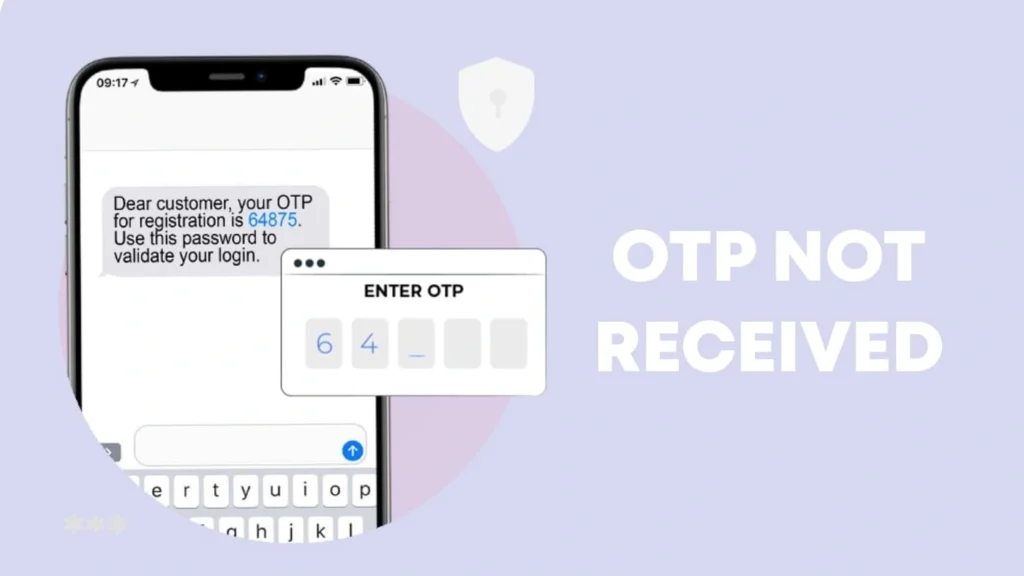
1. Confirm the Masked Mobile Number
2. Wait Before Requesting Another OTP
3. Check Your Phone and Mobile Network
4. Review Blocked and Spam Messages
5. Use Only the Newest OTP
6. Recheck Your Employee Details
Enter all information exactly as it appears in your official employee record.
Check the following details carefully:
Remove unnecessary spaces before or after the Employee Code. A small typing mistake may prevent the OTP request from being processed.
7. Try a Clean Browser Session
8. Try Again When the Portal Is Less Busy
9. Avoid Too Many Login Attempts
What If You Forgot the Employee Code?
Do not enter random codes
Avoid guessing or trying multiple Employee Codes on the portal. Repeated failed attempts may temporarily lock your account and make recovery more difficult.
Check your salary slip
Your Employee Code may be printed on an older or recent salary slip.
Review your employee identity card
Look for the code on your official department-issued ID card.
Check employment documents
Review your tax statement, GPF document, service record, payroll paper, or other official documents.
Look at department-issued records
The code may appear on appointment letters, transfer orders, promotion documents, or other papers issued by your department.
Contact the establishment clerk
Ask your establishment clerk to verify the Employee Code through the authorised employee database.
Visit the DDO office
Your Drawing and Disbursing Officer’s office may also confirm the correct code after verifying your identity.
What If the Account Is Locked?
Repeated wrong passwords, OTP attempts, or security checks may lock an account.
Stop trying random passwords. Contact the DDO, authorised IFMS operator, nodal officer, or official helpdesk.
Share the exact error message shown on the screen. These messages may point to different problems:
A locked account may require unlocking before you can reset its password. Updating the mobile number alone may not remove a separate account lock.
Common Mistakes That Delay Recovery
Creating a second account without approval
A duplicate profile may cause mismatched employee records and delay recovery.
Using another person’s mobile number
Do not enter someone else’s number just to receive an OTP. The registered number should belong to the employee whose account is being recovered.
Paying for an OTP bypass
Never pay anyone who promises instant access or an OTP bypass. Genuine recovery requires identity verification and authorised record correction.
Sharing login credentials
Do not share your username, password, OTP, or other credentials with a colleague, cybercafé operator, or private service provider.
Entering an incorrect name
Use the exact spelling of your name as it appears in your official service record.
Providing an inactive mobile number
Submit an active new number that you can access during the recovery process.
Leaving out your Employee Code
Always mention your Employee Code in recovery requests to help officials identify your record.
Not keeping proof of requests
Save screenshots, emails, acknowledgement numbers, and copies of every official recovery request.
How to Protect Your Account After Recovery
Frequently Asked Questions
Final Thoughts
The safest way to recover MP Treasury access without OTP is not to search for a bypass. Restore the old SIM when possible or have the registered mobile number corrected after official identity verification.
Start with your DDO or establishment branch, provide accurate details, and use the authorised escalation route.
Once the correct number appears in the IFMS record, the normal OTP and password-reset process should allow you to regain access securely.