What to Do When MP Treasury IFMS Shows ‘Insufficient Funds
MP Treasury IFMS Shows “Insufficient Funds” when you log into the Integrated Financial Management System (IFMS) portal and find that your DDO (Drawing and Disbursing Officer) does not have enough budget allocation to process a submitted bill or payment.
This situation can be frustrating, but it is quite common and usually easy to resolve with the right steps. In this article, we’ll explain what “insufficient funds” means, why it happens, and how you can fix it, so your DDO can receive the necessary funds and process payments smoothly.
What Does “Insufficient Funds” Mean on MP Treasury IFMS Portal?
When the MP Treasury IFMS portal shows “insufficient funds,” it indicates that the amount required for your payment or bill exceeds the funds available under the assigned budget head for your DDO. Essentially, there is not enough money in the specific account to cover the requested payment.
The system checks if there are enough funds in the account head to process the request. If not, it displays an error message like “insufficient funds.”
Why Does This Happen?
There are several reasons why you may see this message:
What Can You Do to Resolve “Insufficient Funds”?
If you encounter the “insufficient funds” message, here are the steps you can take to resolve it:
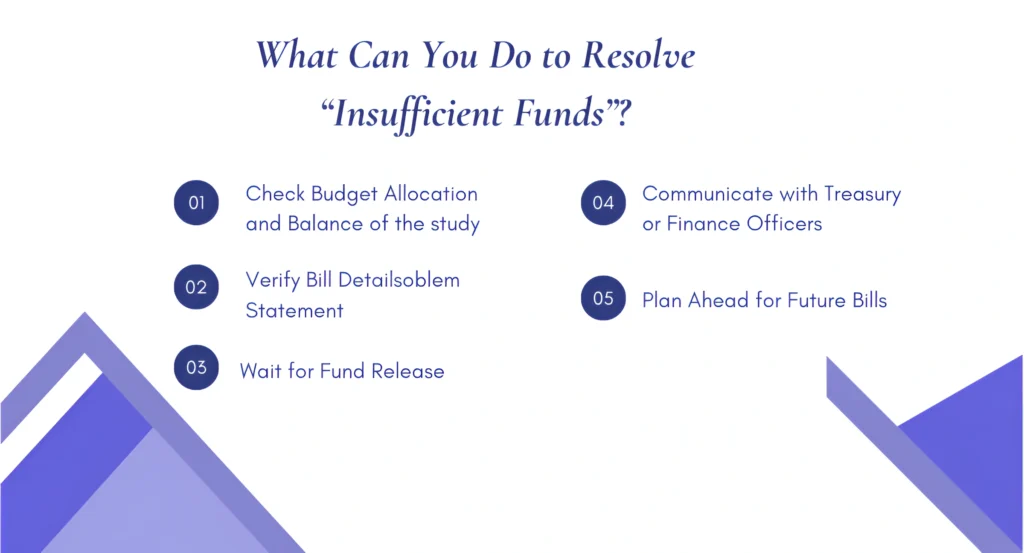
Confirm with the finance department the total allocated budget and the current balance for your DDO. If the funds are exhausted, request a supplementary fund release or additional allocation for the next financial period.
Double-check the coding, DDO head account, and any sanction orders associated with the bill. Ensure there are no errors that might be preventing the payment from going through.
Sometimes, the treasury may delay fund releases. If this is the case, follow up with the relevant department to confirm when funds will be available, so the payment can proceed.
If there is an issue that’s delaying fund release, reach out to the treasury or finance office for clarification and assistance. They may be able to prioritize your payment if it’s time-sensitive.
To avoid running into the same issue next time, try to monitor the fund balance regularly. Submit bills early in the month to give more time for funds to be released, reducing the chances of running out of funds at the last minute.
Tips to Avoid “Insufficient Funds” Issues in the Future
Quick Check: Shortage or Coding Mistake?
Who Is Authorized to Resolve the Error?
Urgent Salary Bill? Follow This Escalation Path
Funds Released but Error Still Showing?
Insufficient Funds Blocking Your Bill? Match the Error With the Right Fix
| Common problem | Likely reason | Practical solution |
|---|---|---|
| Budget balance is zero | The allocation has already been used | Ask the DDO to request an additional or supplementary allocation from the competent authority. |
| Funds exist but the error continues | Funds may be available under a different budget head | Verify the scheme, object head, DDO code, and account classification used in the bill. |
| Allocation is approved but not visible | The release may not yet be mapped or updated in IFMS | Ask the accounts section to confirm the release entry and its mapping to the correct DDO. |
| A large bill exceeds the balance | Available funds are lower than the bill amount | Request additional funds or process the bill according to the authorized payment procedure. |
| Pending bills are blocking the balance | Earlier submissions may have reserved or consumed funds | Review pending, returned, and approved bills before submitting another bill. |
| Incorrect bill coding | A wrong head or scheme code is selected | Correct the bill details and revalidate them before resubmission. |
| Error appears near financial year-end | Budget controls or closing procedures may apply | Contact the DDO promptly and follow the current departmental instructions. |
Avoid This Costly Mistake
Do not repeatedly submit the same bill or change the budget head only to bypass the error. Duplicate or incorrectly coded bills can cause rejection and reconciliation problems. First identify the actual shortage, obtain authorized approval, and keep the error screenshot and bill reference for follow-up.
FAQs
Final Thoughts
Seeing “insufficient funds” on the MP Treasury IFMS portal can be a bit frustrating, but with a few simple steps, you can resolve the issue. By checking your DDO’s fund balance, verifying bill details, and communicating with the treasury, you’ll be able to move past this hurdle quickly.
Remember to plan ahead and keep an eye on your funds to avoid running into the same problem in the future.