MP IFMS OTP Problem: How to Fix & Verify OTP Delivery Issues
MP IFMS OTP Problem is one of the most common issues faced by employees and DDOs while logging in, updating profiles, or approving transactions on the MP Treasury IFMS portal. Many users report that the OTP is delayed, not received on the registered mobile number, or shows an error during verification—causing interruptions in salary processing, GPF requests, and other essential services.
Since OTP authentication is mandatory for secure access on the IFMS portal, even a small mismatch in mobile details or network settings can block important actions. In this guide, you’ll learn the exact reasons behind MP IFMS OTP issues and step-by-step solutions to fix OTP delivery and verification problems quickly.
What Is MP Treasury IFMS & Why OTP Matters?
IFMS stands for Integrated Financial Management System. It’s the official online portal used by Madhya Pradesh government employees to:
The OTP (One‑Time Password) confirms you are you. Without it, you can’t log in or reset passwords. But what if that code never shows up? Let’s fix that.
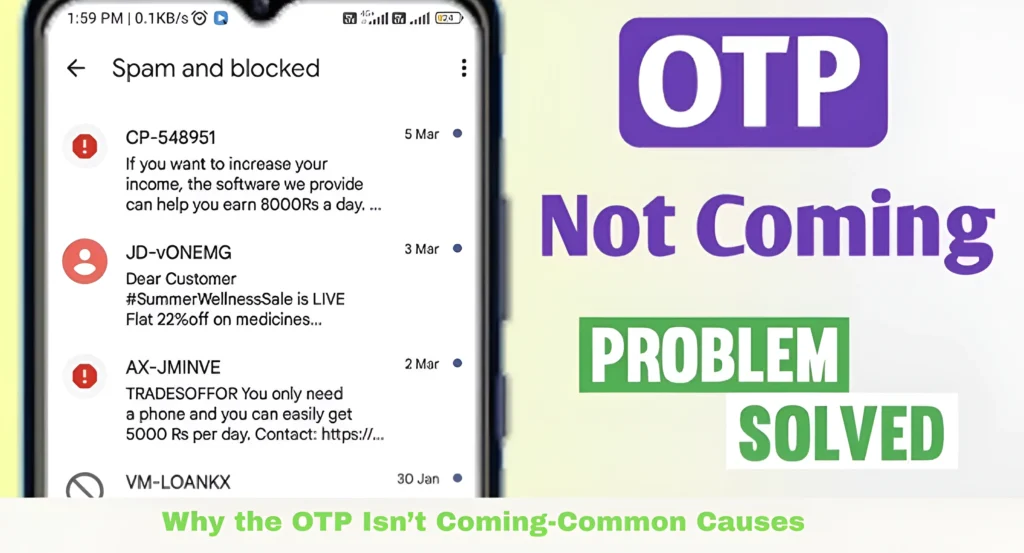
Why the OTP Isn’t Coming-Common Causes
MP IFMS OTP Problem: Common Reasons Why OTP Verification Fails
Wrong Mobile Number
The portal will send the OTP to the number saved in your IFMS profile. If that’s outdated or wrong, you won’t get the message.
Bad Network / Signal
If your mobile signal is weak, SMS delivery can fail. Poor connectivity is one of the biggest real‑world culprits.
SMS Blocking or Filters
Phones can block unknown numbers or messages labeled as spam. This stops OTP messages from reaching you.
Telecom DLT Filtering
In India, SMS OTPs must be registered with telecom providers. If the portal’s sender ID isn’t properly registered, carriers might block the OTP messages.
IFMS System Delay
Sometimes the IFMS system itself can be slow or down during maintenance or peak usage. Waiting a few minutes often solves it.
Fixes That Actually Work: Step‑by‑Step
Follow these proven steps to resolve the MP IFMS OTP Problem, starting from checking spam messages to verifying your registered mobile number. Each step is practical, easy to apply, and helps restore OTP delivery without delay.
The OTP goes to the number saved in your IFMS profile. If it’s old:
- Login to IFMS if possible
- Go to Profile or E‑Profile section
- Update your mobile number and confirm
If you cannot login because OTP never arrives, contact your supervisor or DDO (Drawing & Disbursing Officer) to update it from the back end.
Old browser data sometimes interferes:
- Clear browser cache and cookies
- Close and reopen the browser
- Try again on the official portal: mptreasury.gov.in/IFMS
This refreshes the session and often allows OTP to show.
Obvious, but effective:
- Turn off mobile data and turn it back on
- Switch between mobile network and Wi‑Fi
- Restart your phone
This refreshes your connection to the network and often brings in OTP SMS that were stuck.
Check your phone settings:
- Open SMS app Settings
- Turn off any spam filters
- Unlock sender IDs if blocked
Some phones automatically block numbers not in your contacts list — whitelist the IFMS SMS number if possible.
Sometimes browser security settings block the OTP process. Try:
- Chrome
- Firefox
- Safari
Or use another device (phone vs desktop) to request the OTP again.
If the portal is busy (morning or lunchtime), servers can respond slowly. Try early morning or late evening — you’ll often get the OTP quicker.
Advanced Tips Even When Nothing Works
These extra steps help when basic fixes fail:
Ask Your DDO for Manual Reset
Your DDO can:
Check SMS Settings on Your SIM
Phones sometimes route SMS via old or wrong service center numbers:
Try Email OTP (If Available)
Some services allow OTP via email. Check if IFMS displays an email option before sending OTP. If yes, choose that method and check your inbox (or spam folder).
How to Know the OTP Was Sent
When you click “Send OTP” on the IFMS login or password reset page:
Hint: Always double‑check that the mobile number shown on screen is your correct number.
Quick Recap Fast Checklist
Use this whenever OTP fails:
What Happens After You Get OTP
Once you receive the OTP:
This saves a lot of frustration.
MP IFMS OTP Error Codes & Their Simple Meaning
| OTP Message / Error | What It Means | Quick Action |
|---|---|---|
| OTP Not Sent | The portal is not processing the request | Refresh the page and try again |
| Invalid OTP | The code is wrong or expired | Generate a new OTP |
| Mobile Number Not Registered | Your mobile number is missing from the IFMS profile | Ask your DDO to update the mobile number |
| Session Expired | The browser session has timed out | Open the login page again |
| Too Many Attempts | OTP has been requested repeatedly | Wait for 10–15 minutes |
This table will help users understand the error and take the next step without confusion.
Before Requesting OTP: 5-Point Pre-Check
Before requesting an OTP, make sure you follow this short checklist:
If these basic checks are clear, the chances of OTP failure become much lower.
When to Contact DDO or IFMS Support
Not every OTP problem can be solved through the phone or browser. In some cases, official help is required.
In such cases, reporting the issue to the DDO or IFMS support with a screenshot is the best option.
Safe OTP Practices for MP IFMS Users
MP IFMS OTP is used for security, so it should be handled carefully.
If you receive unknown OTP messages repeatedly, change your password.
If your registered mobile number changes, do not forget to update your IFMS profile.
These steps are important to keep your account safe and protect it from unauthorized access.
MP IFMS OTP Problems and Quick Solutions
| Problem | Possible Reason | Best Solution |
|---|---|---|
| OTP is not received on mobile | Registered number is wrong or inactive | Verify your mobile number in the IFMS profile or ask your DDO to update it |
| OTP is received late | Network issue or server delay | Wait 5–10 minutes, restart your phone, then request OTP again |
| OTP shows invalid | OTP has expired or the wrong code was entered | Enter only the latest OTP and avoid using old codes |
| OTP sent message appears but SMS is not received | SMS spam filter or DND issue may be blocking it | Check spam folder and turn off SMS blocking |
| Login page keeps refreshing | Browser cache or session issue | Clear cache or open the IFMS portal in incognito mode |
| Resend OTP button is not working | Portal may be temporarily slow | Try another browser/device or request OTP during off-peak hours |
| Mobile number has changed | Old number is still saved in IFMS | Contact your DDO office to update the registered mobile number |
This section gives users a direct solution for every common OTP problem, which makes the article more helpful and improves user engagement.
Video Guide: How to Fix MP IFMS OTP Issue
FAQs
Final Thoughts
When you experience OTP issues, the problem is most often related to outdated info or weak connections. Follow these easy steps to ensure smooth access to your IFMS portal.
Keep your mobile number updated, double‑check network settings, and don’t hesitate to reach out to your DDO if needed. The sooner you fix these issues, the quicker you can access your important financial data, payslips, and more!