Name/DOB Mismatch in MP Treasury IFMS: How to Fix Errors
Name/DOB Mismatch in MP Treasury IFMS is a common issue many users face, and it can disrupt your access to salary slips, pension details, and other important services. If you’re encountering this error, you’re not alone. Fortunately, correcting these demographic errors is a straightforward process.
In this guide, we’ll walk you through the steps to fix these discrepancies and ensure your IFMS profile matches the official records, allowing for smooth transactions and access to all services.
Why Do Name & DOB Mismatches Happen?
There are a few typical reasons this issue shows up:
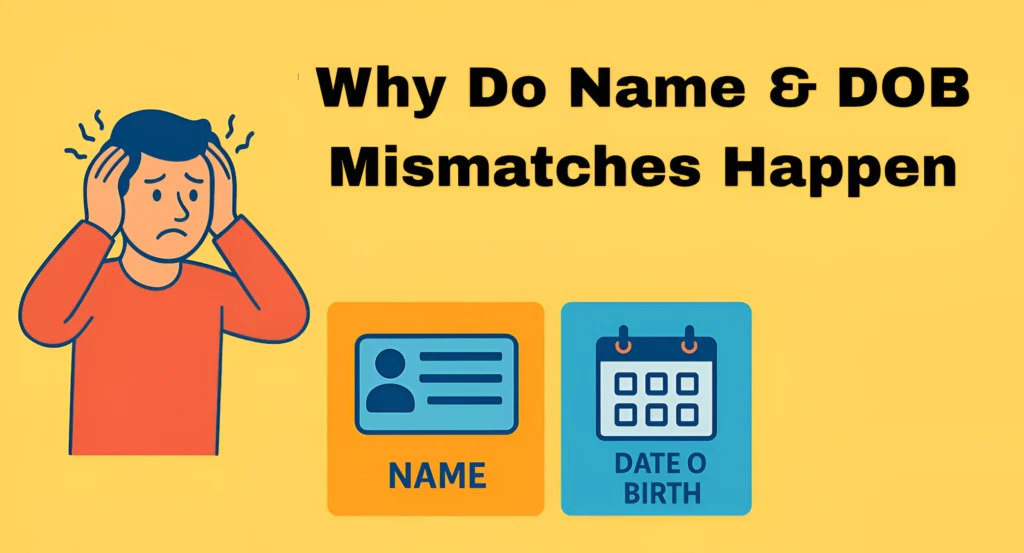
Mismatches aren’t unique to MP Treasury — they show up in other government systems too, and they’re usually about basic demographic data like name, date of birth or gender not matching what’s in official identity records.
If your IFMS profile data doesn’t exactly match what’s in your Aadhaar or other primary ID, the system often rejects your details — especially when verifying payments or generating official documents.
How It Affects You
If name or DOB doesn’t match:
So fixing it quickly is important.
How to Fix Name/DOB Mismatch in MP Treasury IFMS
Here’s the practical way to do it — exact steps most people follow:
Before anything else, check your:
- Aadhaar Card
- PAN Card
- Employment records / service book
The details here should be 100% correct, because IFMS matches against these official records. If there’s a mismatch in Aadhaar itself, you may need to fix that first.
Go to the official IFMS MP Treasury site.
Use your Employee Code/User ID and password to log in.
If you don’t have your login details yet, contact the Drawing & Disbursing Officer (DDO) of your department — they issue your credentials.
Once logged in:
- Go to E‑Profile or Employee Profile menu
- Look for options like Name correction, Update Demographic Details, or DOB update
Most IFMS portals allow you to view and request changes for your own details.
Usually, you’ll see a button or form that says “Edit” or “Submit Correction Request.”
Fill in the correct name and/or correct date of birth exactly as shown on your official ID.
Tip: Enter the data exactly the same way it appears on your Aadhaar card, because IFMS often uses that for verification.
When the system asks for proof, upload:
- Photo of your Aadhaar card
- PAN card or other government ID
- Any official service record showing your correct DOB/name
Your request usually goes to the admin or HR/IT helpdesk for approval.
Once submitted, the correction request will be reviewed by the concerned department (like HR/Admin of your workplace).
This may take a few days. When approved, your IFMS profile will be updated.
Check back in the portal after a few days — the mismatch error should be gone.
What if You Can’t Submit the Change Online?
Some users do not see the correction option. If that happens:
They can usually correct it in the back‑end IFMS system or escalate it to the IT support team. Many people find this is the fastest way when the portal doesn’t let them edit the field directly.
Tips to Avoid These Errors Again
Case Example: Real Mistake & Fix
Let’s say your official name is “Rohit Kumar Singh”, but the IFMS portal has “Rohit K Singh” — missing a word.
You log in → go to Profile → submit a correction request with the correct full name + Aadhaar proof → HR approves → IFMS updates.
After that, payment status and services work normally.
FAQs
Final Thoughts
Fixing your name or date of birth mismatch in the MP Treasury IFMS might seem scary at first — but it’s mainly about making sure your official identity records and your IFMS profile match.
Be patient, follow the steps above, gather the right documents, and don’t hesitate to ask your HR/DDO for help if the online system doesn’t let you make the change yourself.
Once corrected, you’ll stop seeing errors and can use IFMS services smoothly — like checking pay slips, payment status, pension info, and more.