MP Treasury Payslip Password Reset Without OTP Guide
Resetting your MP Treasury payslip password without OTP can be confusing for employees who rely on the IFMS portal for monthly salary slips and financial records. This guide on MP Treasury Payslip Password Reset Without OTP provides a clear, step-by-step method to recover or reset your payslip password even when the registered mobile number is unavailable or OTP is not received. It explains alternative verification methods, essential requirements, and official procedures to ensure secure access to your IFMS employee account. Whether your mobile number has changed, the portal isn’t sending OTPs, or your login credentials are lost, this comprehensive guide helps you regain access quickly and safely.
Common Reasons Why OTP Might Not Be Coming
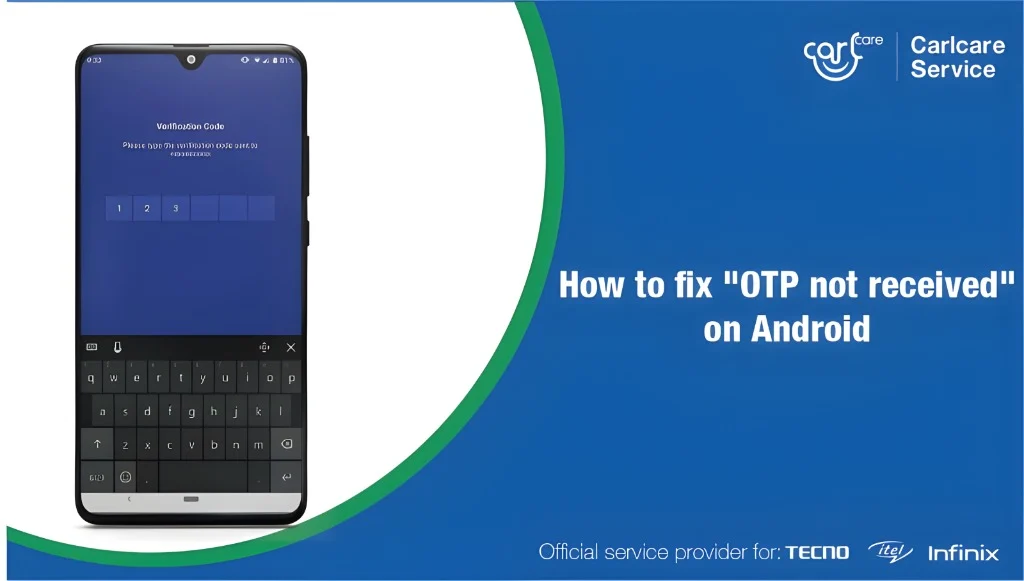
Before diving into solutions, it’s helpful to understand the possible causes for OTP failure during the MP Treasury Payslip Password Reset Without OTP process.
The contact details registered in the portal might not match the ones you’re using to receive OTPs.
Sometimes, the system or mobile networks are overloaded, causing delays in OTP delivery.
Your mobile carrier or email provider might be blocking OTPs or filtering them as spam.
Too many OTP requests in a short period can trigger a lock on the process.
The problem might be caused by cached data, cookies, or browser incompatibility.
Understanding these causes will help you troubleshoot more effectively.
Step-by-Step Guide to Fix OTP Issues and Reset Your Password
Here’s a simple, clear checklist to get you back into the portal quickly:
1. Check Your Registered Contact Information
The first thing you should do is verify that the mobile number or email registered in the portal is up to date. If you’ve changed your contact details recently, the system might still be sending OTPs to your old number or email.
Tip: Ask your Drawing & Disbursing Officer (DDO) or the admin responsible for your account to confirm the contact details associated with your portal account.
2. Wait and Try Again After a Short Period
If you’ve made multiple OTP requests in a short amount of time, the system might temporarily block further attempts. Wait for 10-15 minutes before trying again.
Tip: Don’t refresh the page or keep hitting the “Request OTP” button repeatedly, as this can make the situation worse.
3. Try a Different Network or Disable VPN
Sometimes, issues with OTP delivery can arise if you’re using a VPN or accessing the portal via a restricted network. Switch to a regular mobile data network or a less-restricted Wi-Fi connection.
Tip: Try using your home Wi-Fi or mobile data instead of a corporate or school network to avoid any firewall blocks.
4. Clear Your Browser Cache or Try a Different Browser/Device
Cache and cookies can sometimes cause issues with the login process. If the OTP page is not working as expected, try clearing your browser’s cache and cookies.
Alternatively, you can try accessing the portal from a different browser or even a mobile device.
Tip: If you’re using Chrome, try switching to Firefox, or open the portal on your phone’s browser.
5. Check for SMS/Email Filters or Blocks
Your phone’s SMS or email app may be filtering OTPs into spam or junk folders. Double-check your inbox, including the spam folder, to ensure the OTP didn’t get misplaced.
Tip: If your phone has a security app, make sure it’s not blocking or filtering the OTP messages.
6. Contact Portal Support or Your Department Helpdesk
If you’ve tried all of the above and still haven’t received the OTP, there may be a deeper issue on the portal’s side. The server might be down, or your account might need to be updated.
Tip: Contact your helpdesk and provide details like the error message you received, the time you attempted the reset, and the contact information you’re using for the OTP.
What to Do After You Receive the OTP
Once you finally get the OTP and successfully reset your password, here are some helpful tips:
Create a Strong Password:
Choose a password that’s both secure and memorable. It’s a good idea to use a combination of letters, numbers, and special characters.
Note Your Password Safely:
Make sure to store your password somewhere safe but easily accessible (not on your phone in plain text).
Check Your Contact Details:
Log in to the portal after resetting your password and double-check your mobile number and email to ensure they are correct for future OTPs.
Enable Extra Security:
If the portal allows you to enable security features like two-factor authentication or security questions, take advantage of those to further protect your account.
FAQs
Final Thoughts
Having trouble resetting your password because the OTP isn’t coming through can be frustrating, but don’t worry! By following the checklist above, you should be able to troubleshoot and resolve the issue quickly. If all else fails, your department’s IT support is there to help.