Correcting an Error in Your MP Treasury Bank Account Details

Correcting an error in your MP Treasury Bank Account Details is crucial for ensuring that your salary, pension, GPF, and other financial benefits are credited on time. Even small mistakes—such as an incorrect account number, outdated IFSC code, or mismatched personal information—can result in failed transactions or payment delays.

This guide provides a clear and reliable process to help you identify, report, and update incorrect information in your MP Treasury Bank Account Details within the treasury system. By following the recommended steps, you can prevent payment interruptions and maintain accurate, secure financial records.
Correcting an Error in Your MP Treasury Bank Account Details

Why It’s Important to Keep Your Bank Details Correct on MP Treasury

Your bank account details with MP Treasury are essential for the processing of your salary or pension payments. If your account number, IFSC code, or other bank-related details are incorrect, you may not receive your payment on time or at all. Keeping this information accurate ensures smooth transactions and timely credits.

How to Correct an Error in Your Bank Account Details on MP Treasury

If you notice a mistake in your bank account details, here’s what you should do to correct it:

  • Log in to MP Treasury (IFMS) portal
  • Use your user ID, password, captcha/OTP (as required) to sign in.
  • Go to the “Employee Self Service (ESS)” or “Bank Details / Account Details” section where your bank account details are stored.
  • Locate the “Bank Details Update” or similar option
  • Some versions of IFMS provide a “Bank Details Update” option for employees to change/update their bank account information.
  • If you find this option, click it.
  • Enter correct bank information carefully
  • Provide the correct account number, IFSC code, bank name, and branch name as required.
  • Double-check every detail before submitting to avoid further mistakes.
  • Save or Submit changes
  • After entering details, make sure to “Save” or “Submit.” The portal should confirm that changes are recorded.
  • If there’s a verification step (OTP, approval by authorized officer), complete it.
  • If portal doesn’t allow self‑update — contact the authorities
  • If you don’t see the option to update your bank details, contact your department’s Drawing and Disbursing Officer (DDO) or the treasury support desk to request a change.
  • Submit a written request or form (as required by your department) with the correct bank details.
  • Keep a copy of confirmation
  • Once updated, save a screenshot or print the confirmation message for your records.

Steps to Confirm That Your Bank Account Update Was Successful

After updating your bank details, it’s important to confirm that the change was successfully processed:
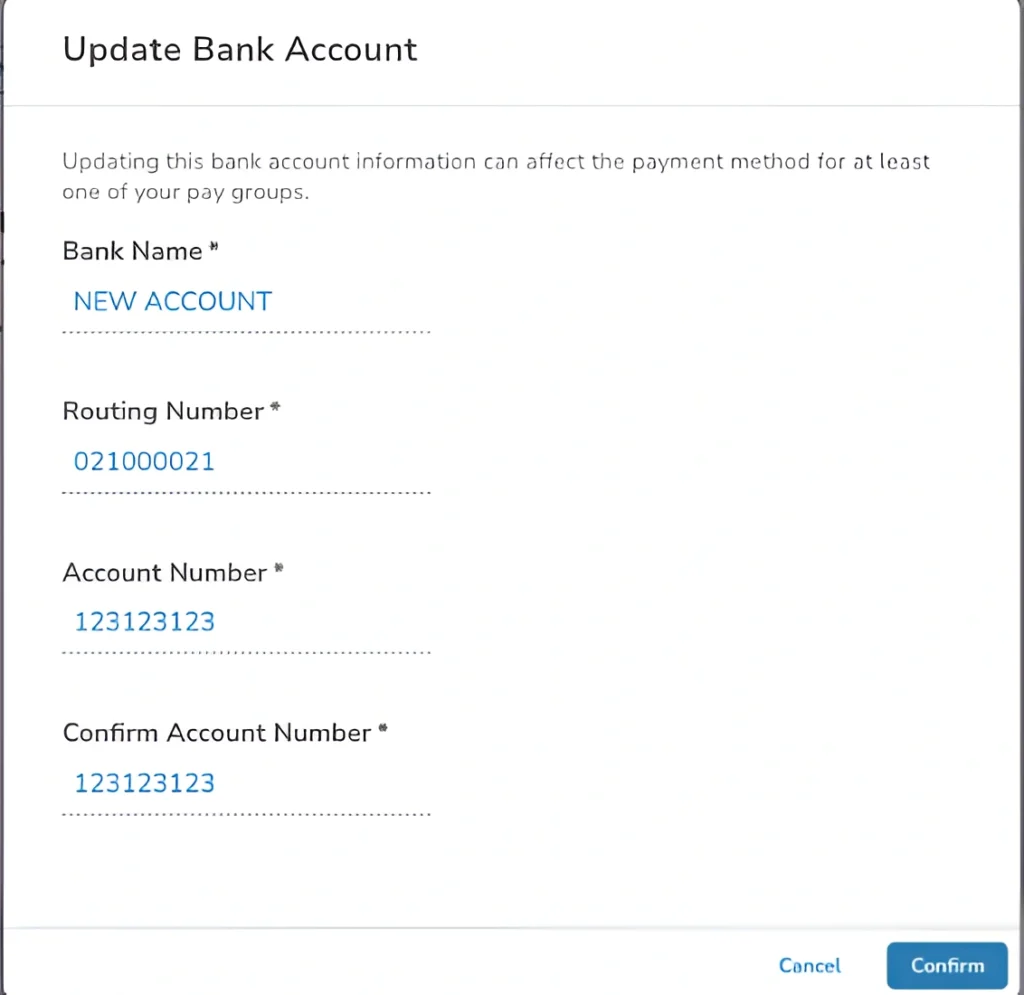
Steps to Confirm That Your Bank Account Update Was Successful

Check for confirmation on the portal

  • Log in again to the MP Treasury portal to see if your new bank account details are displayed correctly.
  • Look for any confirmation message that confirms the update was successful.

Verify with your bank

  • Contact your bank to confirm that the payment system has been updated with your new account details.
  • Ask them to check if there were any issues with your previous account details or pending transactions.

Monitor future payments

  • Track your upcoming salary or pension payments. If the issue persists, reach out to the relevant authority to ensure the payment has been processed to the correct account.

What to Do If You Can’t Correct the Error Yourself

If the MP Treasury portal doesn’t allow you to update your account information or if you’re facing issues with self‑updating:

  • Contact your DDO or treasury office
  • Reach out to your department’s DDO or treasury office. They can manually update your bank details in the system.
  • Be prepared to provide a written request with your new account information.
  • Escalate if necessary
  • If there’s a delay in making the change, follow up with the authorities. Sometimes, higher officials may need to intervene for faster processing.

Tips to Prevent Bank Account Errors in the Future

  • Keep your account details up-to-date
  • If you change your bank account or branch, update your details in the MP Treasury portal immediately to avoid any disruptions in your payments.
  • Always verify your account details before submitting them.
  • Submit documents promptly
  • If any documents, such as a new account passbook or KYC form, are required to update your details, make sure to submit them on time.
  • Check for errors regularly
  • Periodically log into your MP Treasury account to ensure your information is up-to-date and there are no issues with your payment details.

FAQs

Yes, if your account has access to the “Bank Details Update” option under Employee Self Service (ESS), you can update it yourself. If not, you’ll need to contact your department or treasury office.

If you can’t find the bank update option, contact your DDO or the pension/treasury department. They will be able to assist you in updating your account details.

After updating your bank details, log in to the portal again to check for confirmation. You can also contact your bank to confirm that the update has been reflected on their end.

If you make the update before the next payment cycle, your salary or pension should be credited to the new account. However, if there is a delay in processing, follow up with the relevant authorities.

If your payment was sent to the wrong account after updating your details, contact the treasury or bank immediately with proof of the update. Request that they review and redirect the payment.

Final words

If you find an error in your bank account details on the MP Treasury portal, take immediate action to correct it by updating your account details or contacting your department’s DDO or the treasury office. Keeping your details up to date is essential for receiving your payments on time and avoiding delays. By following these steps and staying proactive, you can ensure that your salary or pension is credited to the correct account without issues.
Similar Posts

Leave a Reply

Your email address will not be published. Required fields are marked *