Unlock Hidden Reporting Tools in MP Treasury IFMS Guide
If you’re an advanced user working with MP Treasury IFMS, you know that it’s a robust system for handling financial operations in the government sector. However, many users overlook the hidden reporting tools that can help you go beyond basic tasks like payslips and challans. These tools can provide deep insights into account balances, financial trends, and transaction details, which can help streamline your work and improve decision-making.
This guide will show you how to access and use these advanced reporting tools, so you can maximize your MP IFMS experience and perform your duties with confidence. Whether you’re a DDO (Drawing and Disbursing Officer), an accountant, or someone in charge of auditing, these hidden tools will give you powerful insights into financial data.
Why Should You Explore These Hidden Reporting Tools?
While most users are familiar with basic functionalities like checking salary slips or viewing challans, the true potential of MP Treasury IFMS lies in its advanced reporting capabilities. These tools help you to:
Understand how funds are being allocated and spent across different departments.
Access detailed reports that make audits easier and more transparent.
Monitor your department’s financial health and plan for future expenses with real-time data.
Identify discrepancies or missed entries in financial transactions before they become bigger issues.
The key to making the most of MP Treasury IFMS lies in using these advanced, hidden tools. Let’s dive into some of the most useful ones.
Top Hidden Reporting Tools in MP Treasury IFMS
Here are the most essential tools you may not be using yet:
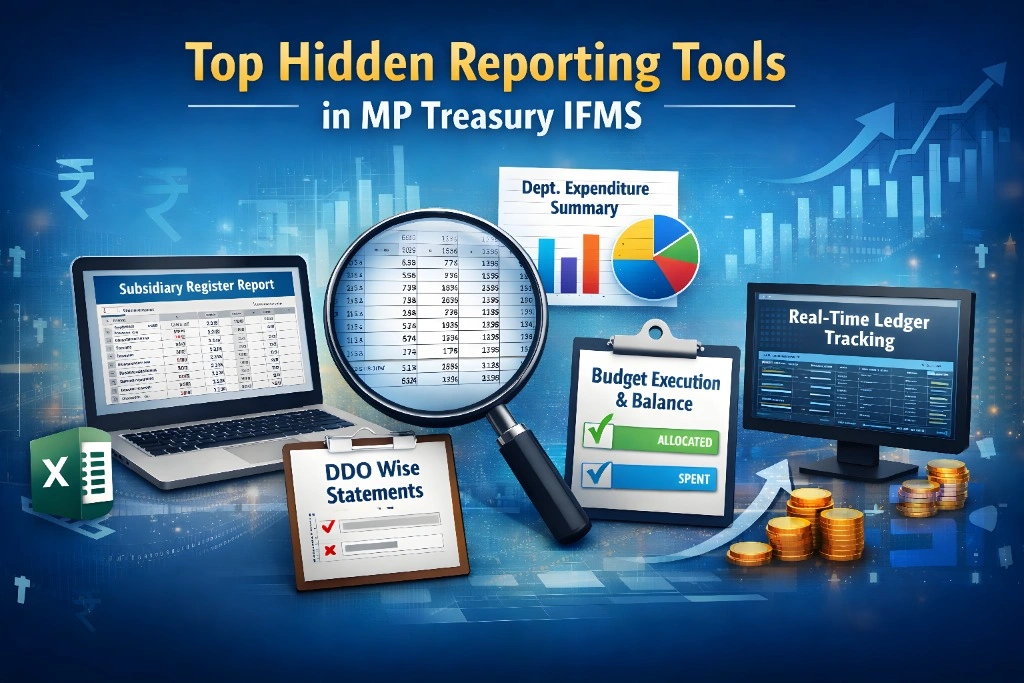
1. Subsidiary Register Report
This report gives you detailed information on:
By drilling down into subsidiary registers, you can trace a specific financial transaction all the way from the voucher to the payment something that basic reports don’t show.
Why It’s Useful:
This report is perfect for audits or when you need to verify if a payment has been processed correctly.
Pro Tip: Always download the report in Excel format for easier analysis and record-keeping.
2. Departmental & Major Head Wise Summary
This report provides an overview of departmental expenditures by major account heads, such as:
It’s often overlooked because it’s buried in advanced menus, but it’s one of the most informative reports for understanding your department’s spending patterns.
Why It’s Useful:
With this report, you can quickly identify overspending in any department or category and adjust accordingly before the fiscal year ends.
3. DDO Wise Financial Statements
If you’re a DDO, this is your go‑to report. It tracks:
Why It’s Useful:
As a DDO, keeping track of pending or rejected bills is essential to ensure smooth payments and prevent delays.
Pro Tip: Regularly check this report to keep everything on track before month-end closures.
4. Budget Execution & Balance Report
This tool shows:
It’s an essential tool for those who handle budgeting and financial planning, as it helps you see how funds are being utilized.
Why It’s Useful:
This report allows you to manage resources efficiently and avoid overspending, ensuring you stay within budget limits.
5. Real‑Time Ledger Tracking
This feature lets you:
Why It’s Useful:
This tool is helpful when you need to audit real-time transactions or spot financial discrepancies instantly.
Pro Tip: Keep an eye on unreconciled ledger entries, as they can indicate errors or discrepancies that need fixing.
How to Access These Hidden Reporting Tools
You may need specific permissions or access levels to view these advanced reports. Here’s a step-by-step guide on how to access them:
Practical Tips for Advanced Users
To get the most out of MP IFMS, here are some practical tips:
If you regularly use certain reports, save your filter settings to access them quickly in the future.
Download reports as Excel files and analyze the data offline for deeper insights.
Don’t wait until the end of the month to check your financial reports. Regular checks help you stay on top of things.
Compare data across multiple months or financial periods to spot trends and identify discrepancies early.
Some reports can be automated to run at scheduled intervals — use this feature to save time.
Common Issues and How to Resolve Them
Report Not Showing Data?
Sometimes, reports might not display data. The issue could be caused by incorrect filter settings or a missing data source. Double-check the parameters before generating reports.
Slow Report Generation?
During peak hours, the system might slow down. Try generating reports early in the morning or later in the evening for faster processing.
Why These Reports Matter
Hidden reports in MP Treasury IFMS offer key insights that help you make informed financial decisions, streamline audits, and improve budget management. Advanced users can save time, spot errors early, and manage departmental funds with more accuracy when they use these tools effectively.
By getting familiar with these hidden reporting tools, you’ll have a clearer picture of financial data, making it easier to optimize your department’s performance.
FAQs
Final Thoughts
MP Treasury IFMS is much more than just a system for viewing payslips or tracking payments. Its advanced reporting tools are the backbone of financial analysis and budget management in the government sector.
If you’ve only been using the basic features, it’s time to dive deeper. Explore tools like Subsidiary Register Reports, DDO Financial Statements, and Budget Execution Reports to unlock the true potential of MP Treasury IFMS.
Don’t miss out on these hidden gems they’re your key to better financial management, smarter decision-making, and error-free reporting.