Download IFMS Annual Salary Statement, Earnings Certificate
MP Treasury makes it easier than ever to Download IFMS Annual Salary Statement and Earnings Certificate for government employees in Madhya Pradesh through the IFMS (Integrated Financial Management System) portal. Whether you need these documents for tax filing, loan applications, or official verification, the MP IFMS platform allows you to download them quickly and securely.
In this guide, we’ll walk you through the simple steps to download your IFMS Annual Salary Statement and Earnings Certificate without any hassle.
What is MP Treasury IFMS?
The MP Treasury IFMS portal is the official digital platform managed by the Government of Madhya Pradesh finance department. It lets state employees:
This portal reduces the need to visit the treasury office. You just need your login credentials and internet.
Why These Documents Matter
Here’s why employees need these downloads:
Annual Salary Statement:
Shows yearly income details—needed for income tax returns, PF, loans, verification
Earnings Certificate:
Official proof of yearly earnings—used for banks, visas, official submissions
Monthly Pay Slips:
Useful for tracking salary breakdown (basic, allowances, deductions)
These documents are important for both official and personal finance records.
Before You Start: What You Need
Make sure you have:
If you don’t have login details:
Contact your Drawing & Disbursing Officer (DDO) — they provide your initial credentials.
Step‑by‑Step: How to Login
Tip: If login fails, check your credentials carefully. Also ensure you typed the captcha correctly — this is a common issue.
How to Download IFMS Annual Salary Statement & Earnings Certificate
Once you’re logged in, you’ll see the dashboard with options like “Employee Services” or “HRMIS Home”. Here’s what to do next:
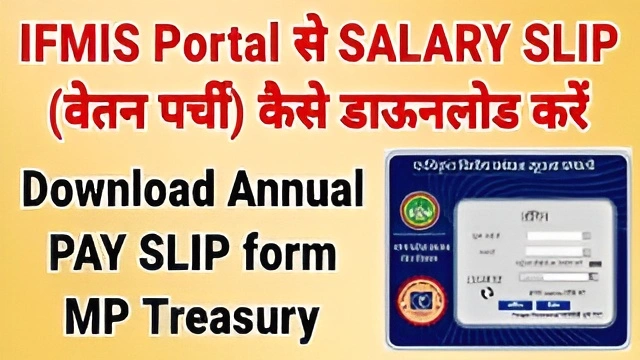
Look for:
- Reports / Salary Statement / Employee Salary Report
Sometimes it’s under:
- Employee Self Service (ESS) → HRMIS Home → Reports
Now you should see options like:
- Employee Payslip Report (monthly)
- Annual Salary Statement
- Earnings Certificate
Select:
- Earnings Certificate depending on what you need.
Financial Year
If you want monthly records choose a month; for annual choose year only.
Once selected, hit:
- Generate Report or View / Download PDF
- After the document loads, click Download PDF
- Save it on your phone or computer
- Print it if needed
Tip: Save a copy in your Google Drive or email for later use.
Change Password / Forgot Password
If you forgot your password:
Tip: Use a strong password you can remember — mix letters and numbers.
Tips for Faster Downloads
Common Problems and Fixes
Use Cases: Where These Documents Help
These downloads are useful for:
In short — anytime you need proof of work or income!
Extra Help If You Get Stuck
If something still doesn’t work:
They can guide you on login, reports, or portal issues.
How to Download Annual salary statement From IFMS Portal
FAQs
Final Thoughts
Downloading your Annual Salary Statement and Earnings Certificate from the MP Treasury IFMS portal is simple once you know the steps. Just login with your credentials, go to Reports / Salary Documents, choose Annual Salary Statement or Earnings Certificate, and download the PDF to save it for future use.
This process helps you avoid visits to the office, saving time and providing you with necessary official documents quickly.