Set Up Multi-Factor Authentication on MP Treasury IFMS Guide
If you’re using MP Treasury IFMS (Integrated Financial Management System) for government-related financial tasks like salary slips or bills, securing your account with Multi‑Factor Authentication (MFA) is essential. MFA adds an extra layer of protection, making sure that even if someone gets hold of your password, they cannot access your account without the second authentication.
This guide will walk you through the process of setting up MFA on MP Treasury IFMS. It’s straightforward and will ensure your account is much safer.
Why Should You Set Up Multi-Factor Authentication on MP Treasury IFMS?
Securing your MP Treasury IFMS account is not just a good idea, it’s a must. Here’s why MFA is crucial:
Enhanced Security
Protects your account from unauthorized access.
Prevents Hacking
Even if someone knows your password, they can’t log in without your phone or email verification.
Peace of Mind
Adds an extra layer of protection, preventing fraud or unauthorized activity.
MFA reduces the risk of account compromise and keeps your personal and financial information safe.
Setting Up MFA on MP Treasury IFMS: Step‑by‑Step Guide
To start, go to the official MP Treasury IFMS login page in your browser.
Visit MP Treasury IFMS
Fill in the following details:
- User ID (Your employee code)
- Password
- Captcha Code (to confirm you’re not a robot)
Click the Submit button.
Once you submit your login credentials:
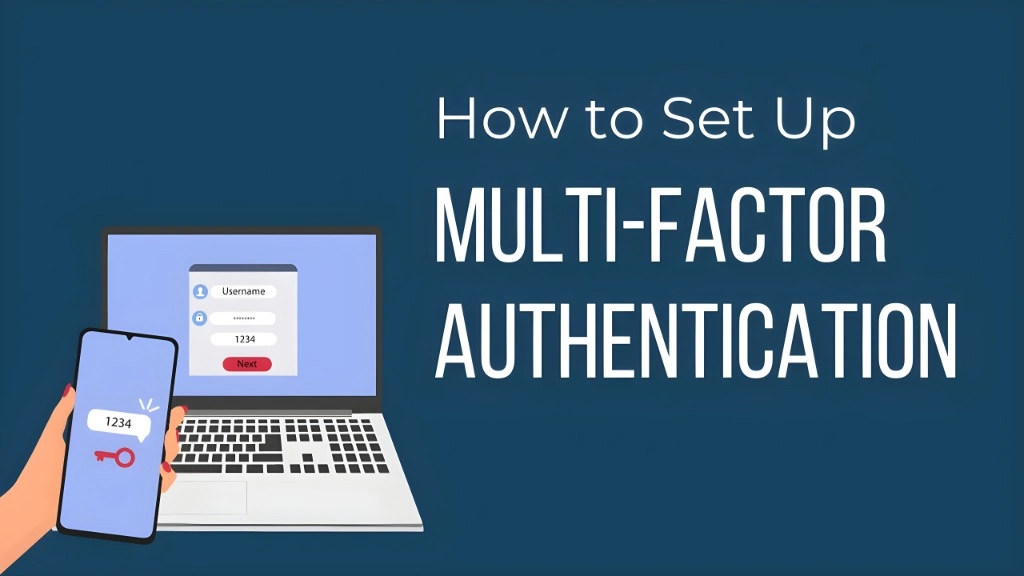
- You’ll receive a One-Time Password (OTP) on your registered mobile number or email address.
Note: This OTP is the second factor of authentication, which means even if someone knows your password, they can’t log in without the OTP.
- Enter the OTP that you receive.
After entering the OTP, your credentials will be verified, and you’ll be logged into your MP Treasury IFMS account. You can now securely access your salary details, treasury services, and more.
Common Issues and Quick Fixes
Issue: OTP Not Received?
Issue: Login Problems?
Tips to Improve Your Account Security with MFA
Here are a few extra tips for better security:
What to Do If You Encounter Problems with MFA?
If you face any issues during the MFA process, here’s what to do:
FAQs
Final Thoughts
Setting up Multi‑Factor Authentication for your MP Treasury IFMS account is a simple but highly effective way to secure your personal and financial data. With just a few minutes of setup, you ensure an added layer of protection.
MFA means that even if someone gets your password, they can’t access your account without your second verification step, whether it’s a code sent to your phone or email.