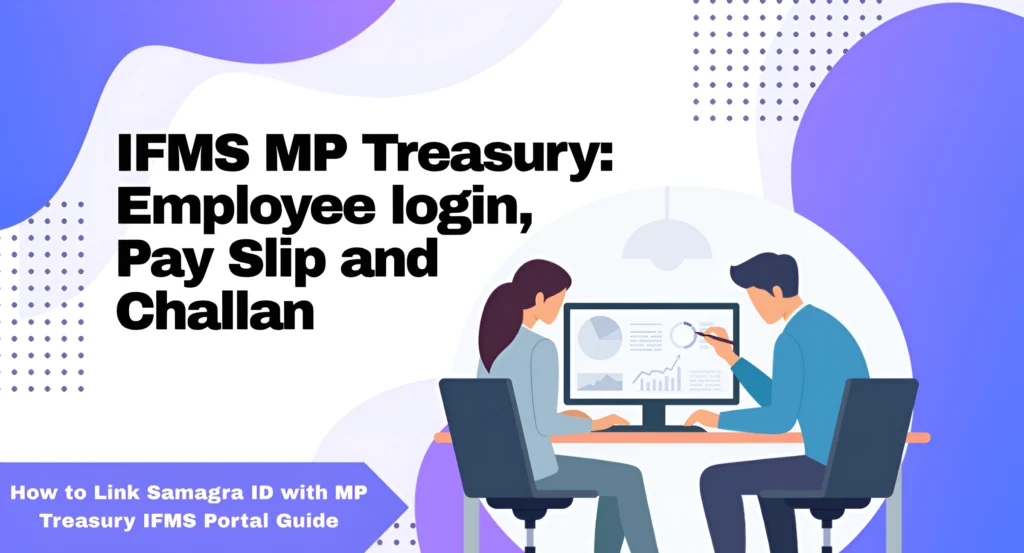
How to Link Samagra ID with MP Treasury IFMS Portal Guide
Link Samagra ID with MP Treasury IFMS Portal is a simple yet essential step for Madhya Pradesh government employees. This process ensures seamless salary processing and financial record management through the Aadhaar Enabled Payment System (AEPS).
Whether you’re new to the system or need a refresher, this guide will walk you through the steps to link your Samagra ID with the IFMS portal, ensuring everything is set up correctly for timely salary payments and easy access to your financial details.
What Is Samagra ID and IFMS Portal?
Linking these two makes your employee profile complete and compliant.
Before You Start (Checklist)
Make sure you have:
TIP: If your Samagra e‑KYC isn’t done yet, go to the Samagra portal and complete it before doing this process.
How to Link Samagra ID with MP Treasury IFMS Portal
Linking your Samagra ID with the MP Treasury IFMS Portal is a quick and important step for government employees. In this guide, you’ll learn how to link Samagra ID with MP Treasury IFMS Portal properly so that your salary is processed smoothly and your financial records remain up to date.
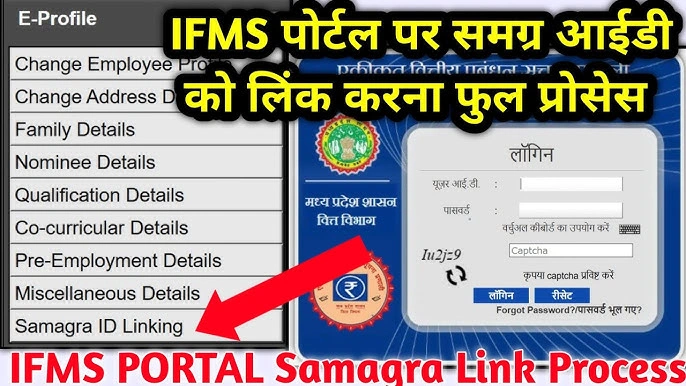
Open the official IFMS portal.
- Enter your Employee Code and Password.
- Enter the Captcha and click Login.
- Complete OTP verification on your registered number.
TIP: If you forgot your password, use the “Forgot Password” option to reset it.
- Once logged in:
- Find the HRMIS HOME section.
- Under HRMIS, click E‑Profile.
- You should see a link that says Samagra ID Linking.
If you don’t see it, contact your admin or support team — sometimes rights need to be set.
- On the Samagra ID Linking page, check your employee details.
- Enter your Samagra Member ID exactly (9 digits).
- Click Validate.
This step checks your Samagra details with your IFMS profile.
- After validation, an OTP will be sent to your registered mobile number.
- Enter the OTP.
- Click Verify.
If your details match the Samagra database and Aadhaar e‑KYC is complete, the system will accept the OTP.
This step is critical if your name or mobile doesn’t match between Samagra and IFMS, the OTP won’t work.
After submitting:
- After OTP verification, you’ll see your profile details.
- Double‑check that everything looks correct (name, DOB, Aadhaar number).
- Click OK / Link to complete the process.
You should see a Success Message like “Successfully Linked.”
Troubleshooting & Tips
If you encounter issues while linking your Samagra ID with the MP Treasury IFMS Portal, ensure that your details match exactly between both portals. Double-check your mobile number, Aadhaar e-KYC status, and any discrepancies in your profile to avoid common errors.
Data Doesn’t Match?
If you get errors during validation:
Mismatches are the most common reason OTP fails.
No OTP Coming?
Mobile mismatch is another common blocker.
Samagra e‑KYC Not Done?
e‑KYC must be completed on the Samagra portal first. If not done, the IFMS linking won’t work.
Why This Matters
Linking your Samagra ID with the MP Treasury IFMS Portal:
Quick Recap
| Step | What You Do |
|---|---|
| 1 | Log in to IFMS portal |
| 2 | Go to HRMIS → E‑Profile |
| 3 | Enter Samagra ID |
| 4 | Validate & get OTP |
| 5 | Verify OTP & link |
Quick Tips
Samagra ID Linking Error Checklist
If your Samagra ID is not linking, check these points first:
| Check Point | What to Verify |
|---|---|
| Samagra Member ID | Enter the correct 9-digit member ID |
| Aadhaar e-KYC | Complete e-KYC before IFMS linking |
| Name spelling | Match name in Samagra and IFMS |
| Date of birth | Check DOB in both records |
| Mobile number | Use the same active number for OTP |
| Employee profile | Make sure IFMS profile is updated |
When Samagra ID Linking May Fail
Samagra ID linking may fail due to small profile mistakes.
Common reasons include:
What to Do If Details Do Not Match
Follow these steps if your Samagra and IFMS details are different:
Smart Tips Before Final Submission
Before clicking the final link button, review everything carefully.
Samagra ID Linking Problems and Solutions
| Problem | Reason | Smart Solution |
|---|---|---|
| Samagra ID not linking | Wrong member ID entered | Recheck the 9-digit Samagra ID. |
| OTP not received | Mobile number is inactive or different | Update your mobile number first. |
| Details mismatch | Name, DOB, or Aadhaar does not match | Correct details in Samagra or IFMS. |
| e-KYC pending | Aadhaar e-KYC not completed | Complete Samagra e-KYC, then try again. |
| Validate button not working | Browser or portal issue | Clear cache or try another browser. |
| Linking option not showing | HRMIS access may not be enabled | Contact HR/DDO for access support. |
| Wrong ID linked | Incorrect Samagra ID submitted | Contact DDO/HR with proof for correction. |
Quick Tip
Match your Samagra ID, Aadhaar, mobile number, name, and DOB before linking to avoid errors.
Video Guide: Samagra ID Linking on MP Treasury IFMS Portal
FAQs
Final Thoughts
Linking your Samagra ID with the MP Treasury IFMS Portal is straightforward if you follow these steps carefully. Do it once and you’re done. It’s required, it saves time later, and it ensures your salary and records stay clean and correct.
If you run into any issues, your department’s IT support or HR team can help with access and rights inside IFMS.